Product Strategy Conversational AI 0 → 1 Design

Azure Copilot in Teams & Slack

An AI copilot built for the Azure portal, reimagined for the places engineers actually work — a conversational experience for Microsoft Teams and Slack, where specialized agents help an engineer resolve issues without leaving the thread.

Timeline

2024 – 2025

Platforms

Microsoft Teams · Slack

My Role

Design Lead — owned strategy and design across every surface, from kickoff to launch.

Context

Engineering teams coordinate in Slack and Teams. But the moment something breaks, someone has to leave the conversation.

🔗

The work lives elsewhere

Filing a support case, checking Service Health, acting on a resource — all of it lives in the Azure portal. One person goes to another tab, does the work, and relays it back to the group.

AWS was already there

Amazon Q Developer runs natively in Slack and Teams, letting customers query, troubleshoot, and act on AWS without leaving the channel. Azure had no equivalent, and some of its largest customers were asking for one by name.

🎯

The goal was never a chatbot

Make the channel a place you can operate Azure from — describe a problem, troubleshoot it, manage a support case, and take real action on your cloud, conversationally, where the team already coordinates.

The Challenge

That ambition is what made this a design problem rather than a port. Copilot was built for the Azure portal — navigation, panels, forms, a canvas chat doesn't have. And an answer surface is a far easier thing to design than an action surface: if the agent is about to change something in a customer's cloud, the conversation has to carry enough context for a person to see what will happen and approve it — often in a thread other people are reading.

It also had to stay one product. Teams and Slack share a platform and roadmap with the portal, so whatever Copilot became in chat still had to be the same Copilot.

🎯

Problem Statement

What does a product built for a portal have to become when the conversation is where the work happens?

Design Highlights

What shipped brings Azure Copilot into Teams — from discovering and installing the app to chatting with a set of specialized agents that resolve issues in place. Here are the highlights, in the order a user meets them.

App discovery

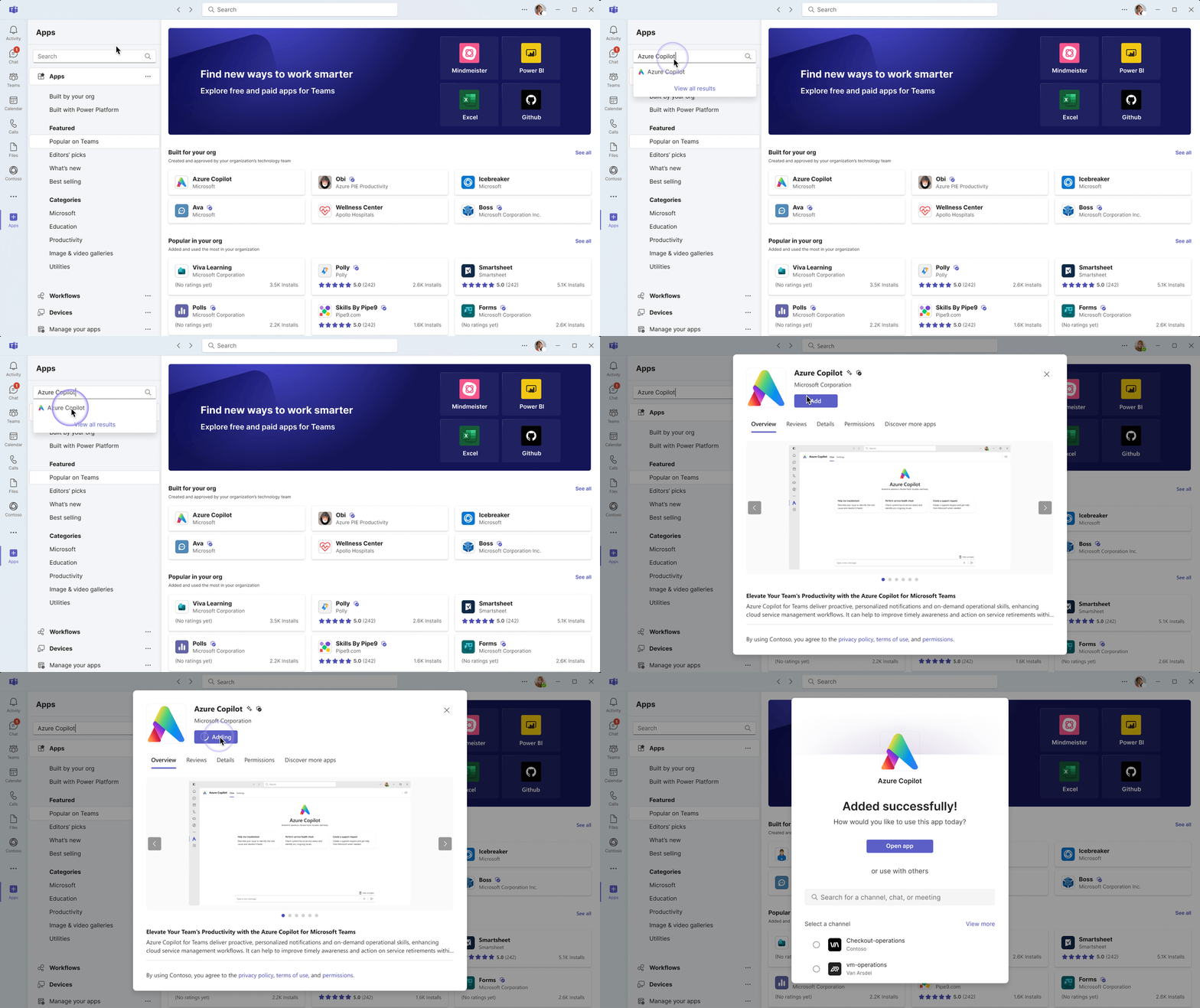
Users install Azure Copilot from the Teams app marketplace and launch it right inside Teams. As a brand-new product, it also needed a first impression — naming, icon, and visual identity — plus a staged waitlist for a gradual enterprise rollout.

Discovering Azure Copilot in the app store

Onboarding

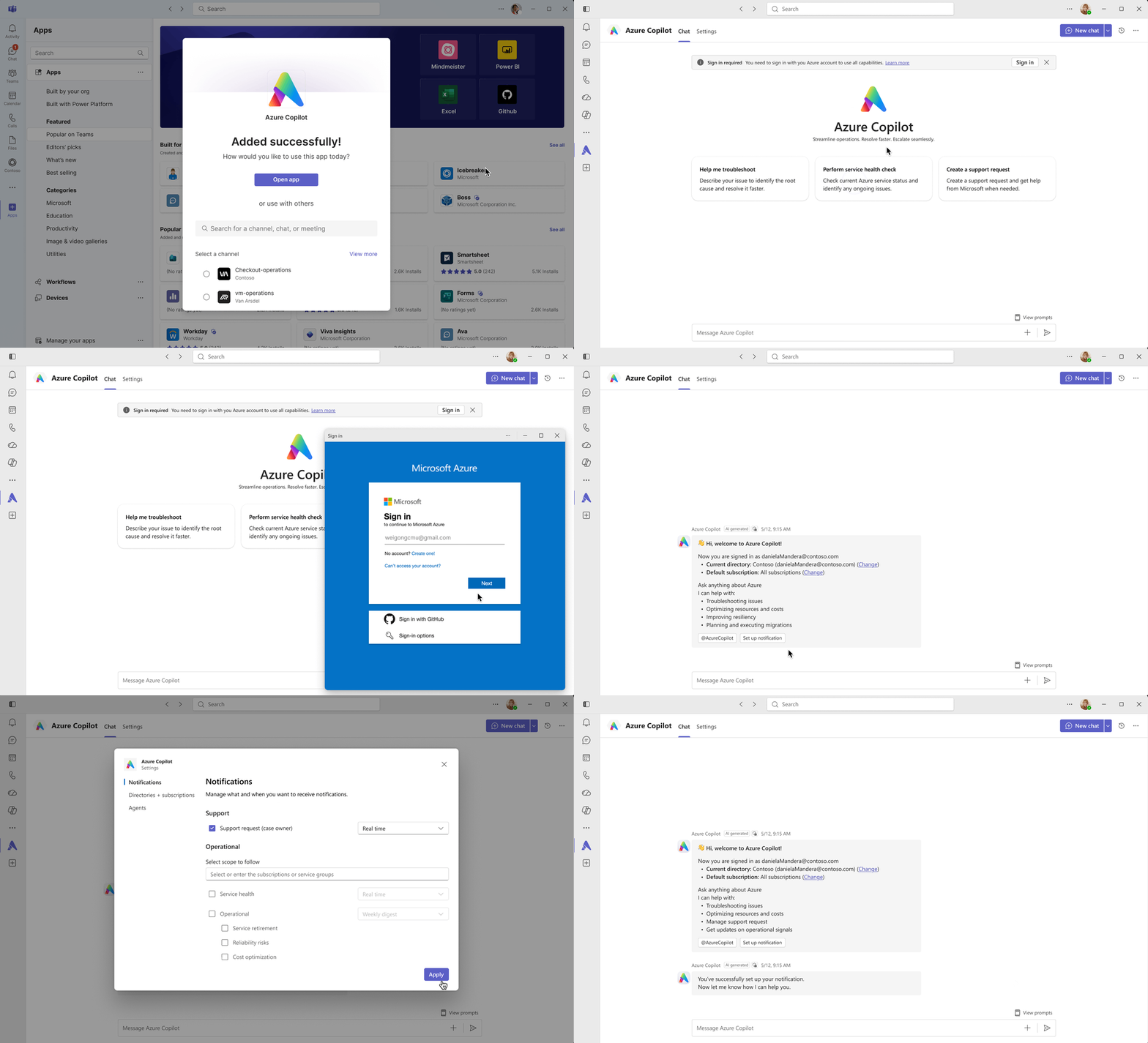
A short onboarding walks users through setup: sign in with an Azure account to connect Copilot to their organization, meet its key capabilities, and start chatting right away. Proactive notifications are optional and customizable at any time.

Signing in and configuring a workload in Azure Copilot

Chat agent

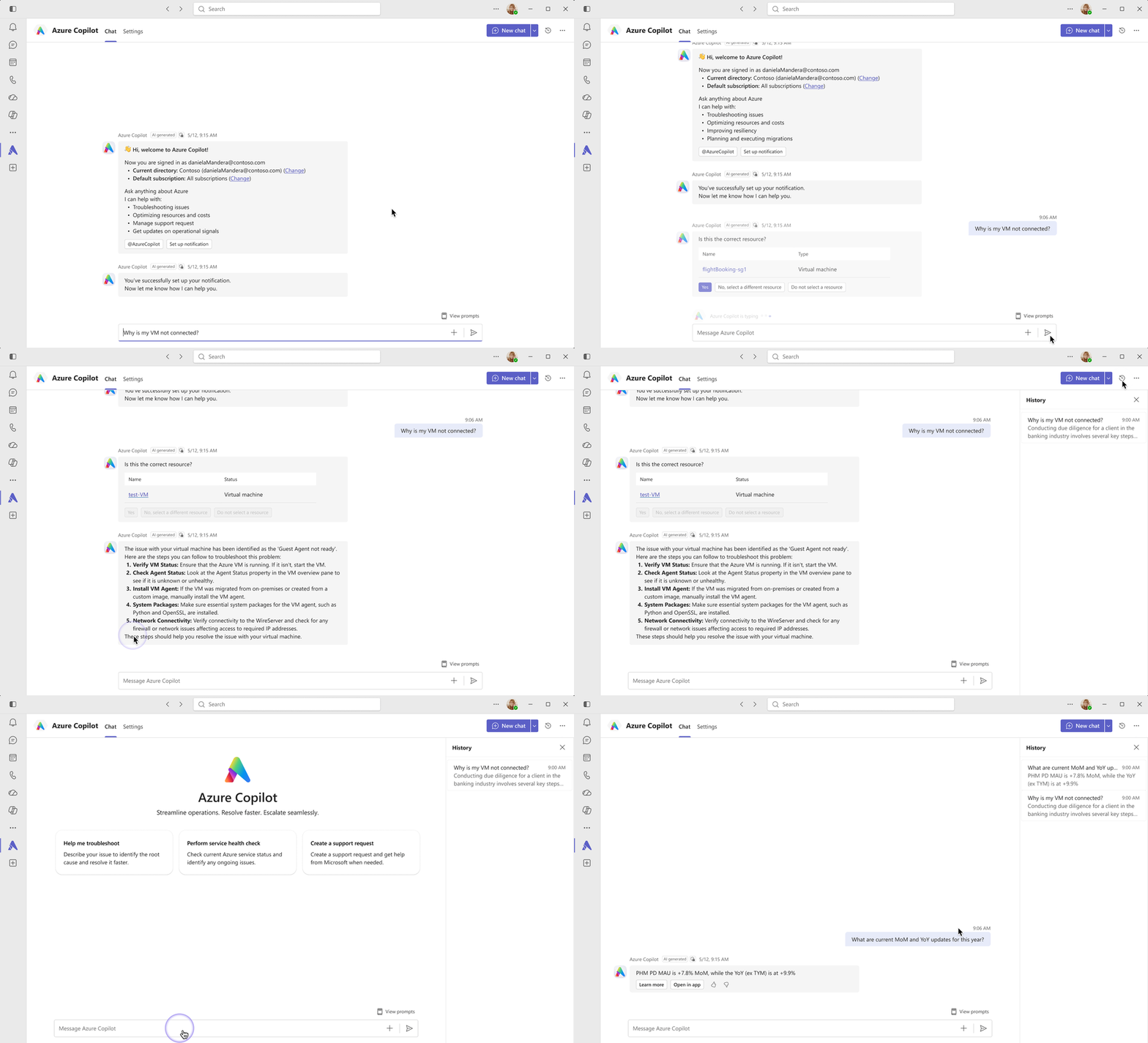
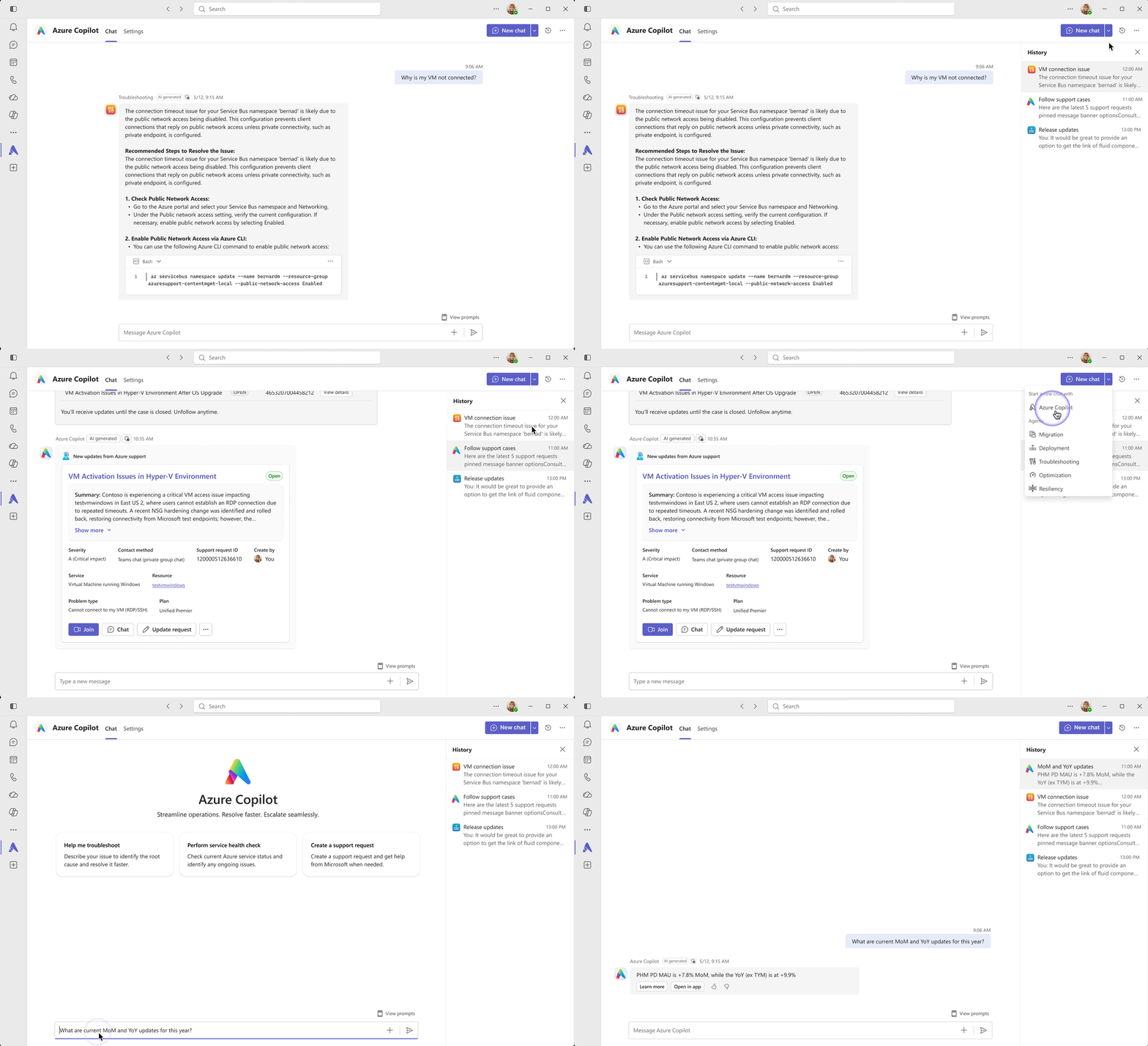
With setup complete in a few clicks, users can start asking questions directly from Teams. Copilot identifies the relevant resources, analyzes the issue, and generates a solution — without requiring users to switch tools. They can also revisit chat history or start a new chat to keep their conversations with the agent organized.

The Azure Copilot chat agent working through an incident end to end

Specialized agents

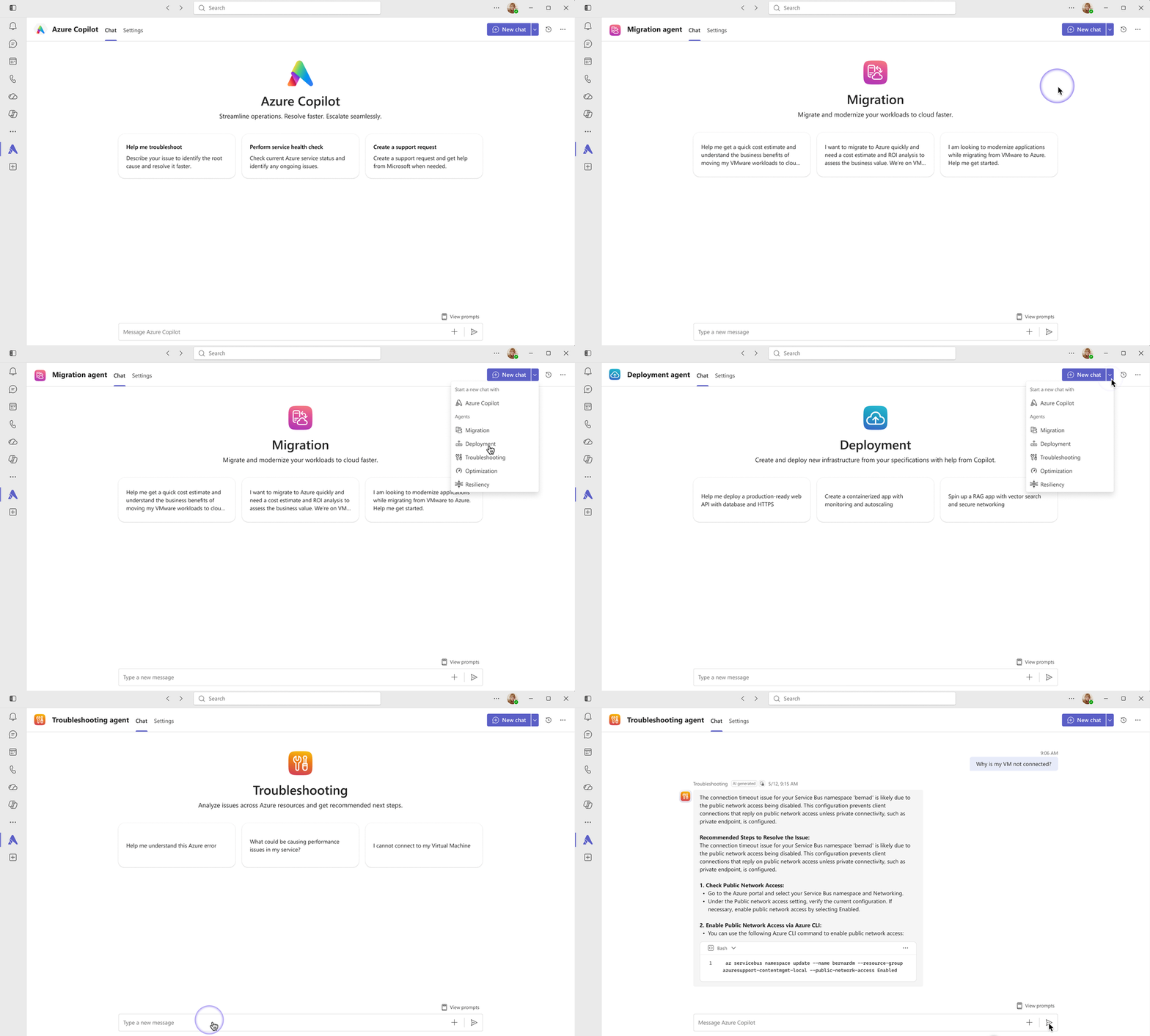
Some questions need a specialist. When starting a new chat, users choose who to talk to — the general Copilot, or a specialized agent for migration, deployment, troubleshooting, and more. Each agent opens with prompt starters written for its job, so the conversation starts with an expert who already knows the territory.

Switching between specialized agents within Azure Copilot to get a tailored answer

Working together in a group chat

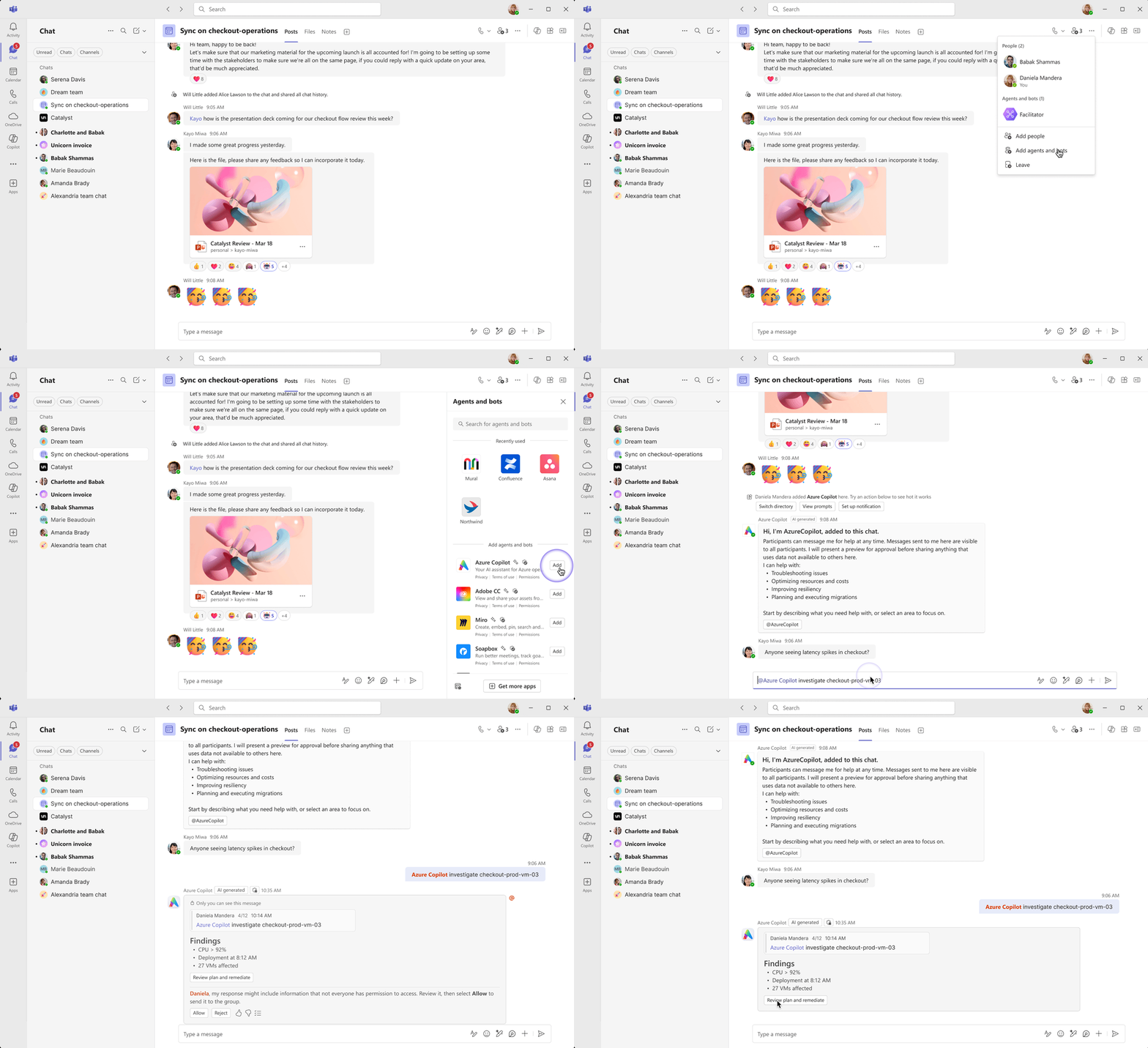
Azure operations are a team effort, so Copilot also works where the team already is. Users can bring the agent into a group chat and ask it questions in front of everyone — the answer lands in the thread the team is already reading, so the whole group sees the same context instead of one person relaying it.

Bringing Azure Copilot into a Teams group chat so the whole team shares the same answer

The same Copilot in Slack

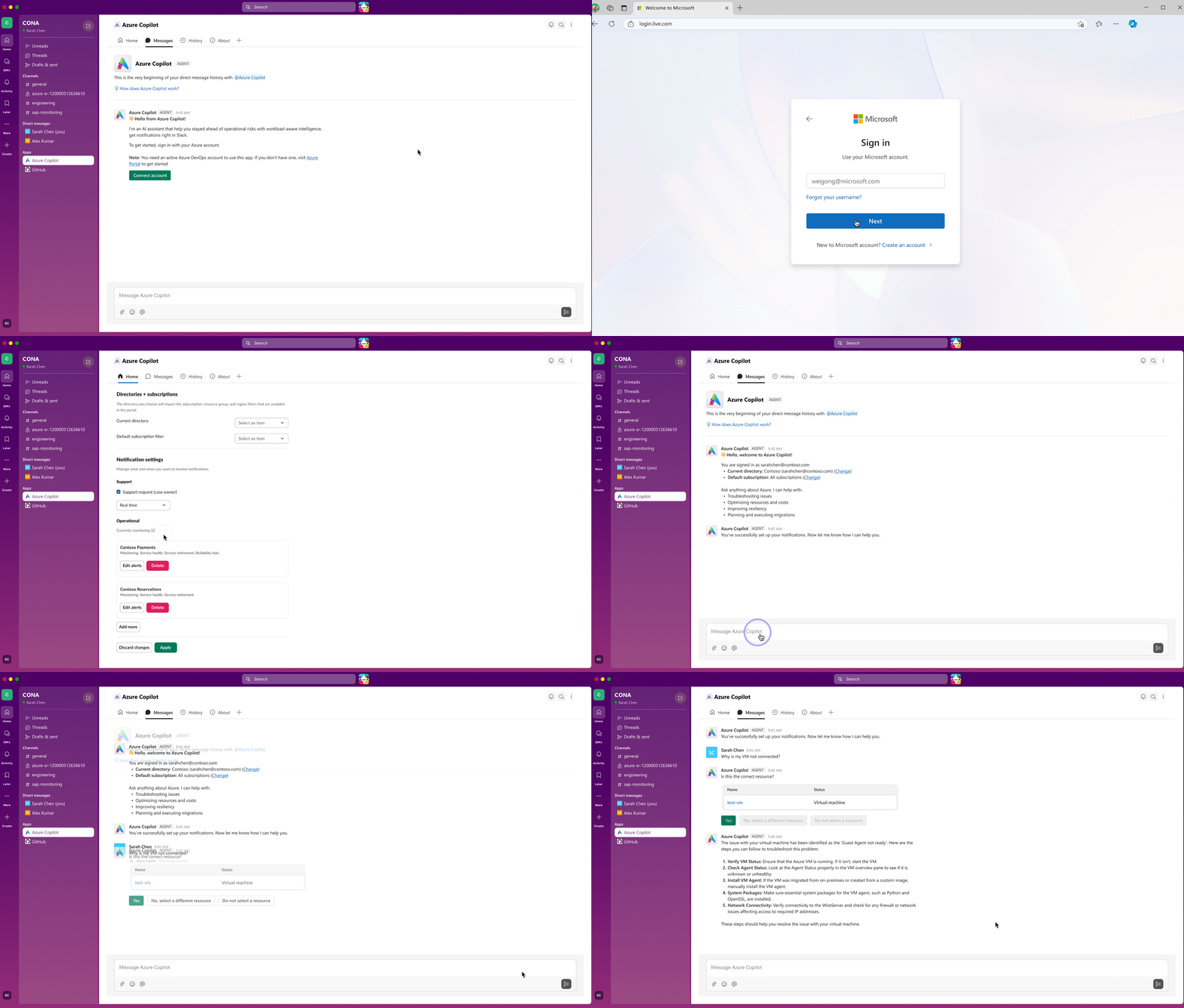
Teams and Slack don't share building blocks, so the Slack app was designed natively rather than ported — Block Kit messages, an app home, and Slack's own sign-in and notification patterns. What stays the same is the conversation: connect an Azure account, set up notifications, ask a question, confirm the resource in question, and get the fix in the thread — the same stages and the same decisions at the same moments, in Slack's vocabulary.

Azure Copilot in Slack — connecting an account, setting up notifications, then troubleshooting a virtual machine in the thread

Design Process

Troubleshooting is one of several on-demand skills — cost, support, and operational insights work the same way. The platform already had these capabilities; the harder design problem was the flow that connects them into one guided conversation, carrying an engineer from “something's wrong” to “it's handled.” The example below follows a workload retirement.

Journey map

I mapped the way teams move through an incident onto an ordered set of stages, each answering the question the previous one raised. The agent carries the user forward — completing one stage surfaces the next.

01
Discover

Surface the retirements and changes affecting a workload.

“Does this affect me?”
02
Prioritize

Rank what's found by criticality and cost.

“What do I fix first?”
03
Plan

Generate a remediation plan across 30 / 60 / 90 days.

“How do I fix it?”
04
Coordinate

Create the work item, assign an owner, track progress.

“Who takes it?”
05
Execute

Generate and run the remediation script.

“Let's run it.”

Iterations

A design review surfaced two changes, both about letting the user decide rather than deciding for them.

Scope before answering. Instead of answering a broad question directly, Discover now asks for what it needs — the subscription and service group — and offers to save that as a reusable workload, so the user never has to define it again.

🖼
Image / GIF
Scoping step — agent asks for subscription / service group and offers to save a workload.

A fork to hand off. The recommendation card gained a second action. Review & remediate opens the plan; Create work item hands it off, notifying the assigned owner through their own Copilot. Some users need the plan; others are triaging for a team and only want the handoff.

🖼
Image / GIF
Recommendation card with the fork — "Review & remediate" vs "Create work item" handoff.

Designing for Slack

The same conversation had to ship on Slack — the same stages and the same decisions at the same moments, but not the same screens, because Teams and Slack do not offer the same building blocks. I designed Teams first, then defined the system a second designer built Slack from.

💼
Teams
The skills flow in Teams — Adaptive Cards.
💬
Slack
The same flow in Slack — Block Kit.

The same flow, side by side.

When something needs attention in Teams, a toast can surface it over whatever the user is doing; Slack offers only a sidebar badge, noticed in passing. Teams' Adaptive Cards support a carousel, so several items fit in one swipeable card; Slack's Block Kit does not, so the same content becomes a list or splits across messages.

📏

The rule I drew

The easy path was a lowest common denominator — one identical experience everywhere — but forcing two platforms to match makes both worse. The rule instead: the meaning stays identical (what the agent says, which decisions are available, and the state the user ends in), while delivery and layout are free to differ, since that is what makes each platform feel native rather than ported.

Takeaways

I expected the hard part to be the AI — its intelligence and the quality of its answers. It was not; that already existed in the portal. The work that mattered happened earlier, in what I did with the constraints I was given and the requirements I was handed.

🧱

A constraint is information

The direction I believed in most was impossible to build. But “the system can't decide” only sharpened the question — from who decides to when they decide.

The result is better than my first proposal because of the constraint, not despite it.

🧪

A requirement is a hypothesis

A three-step setup flow. “Make agents easy to find.” Neither requirement was wrong; neither was the problem — one encoded steps users didn't need, the other named a symptom.

A requirement is what someone imagined the solution to be. The work is recovering the problem behind it.